Your Launcher is an Android launcher I made so you can set up your home screen around how you use it. You decide where pages, widgets and shortcuts go.
Get it on Google Play
Any phone. Your Launcher.
Your Launcher: Custom & Smart
For Android™ phones running Android 8.0 or later. Android is a trademark of Google LLC.
What’s inside16
- 01
Page map
Add pages in four directions. Your home screen becomes a map that grows sideways and downwards.
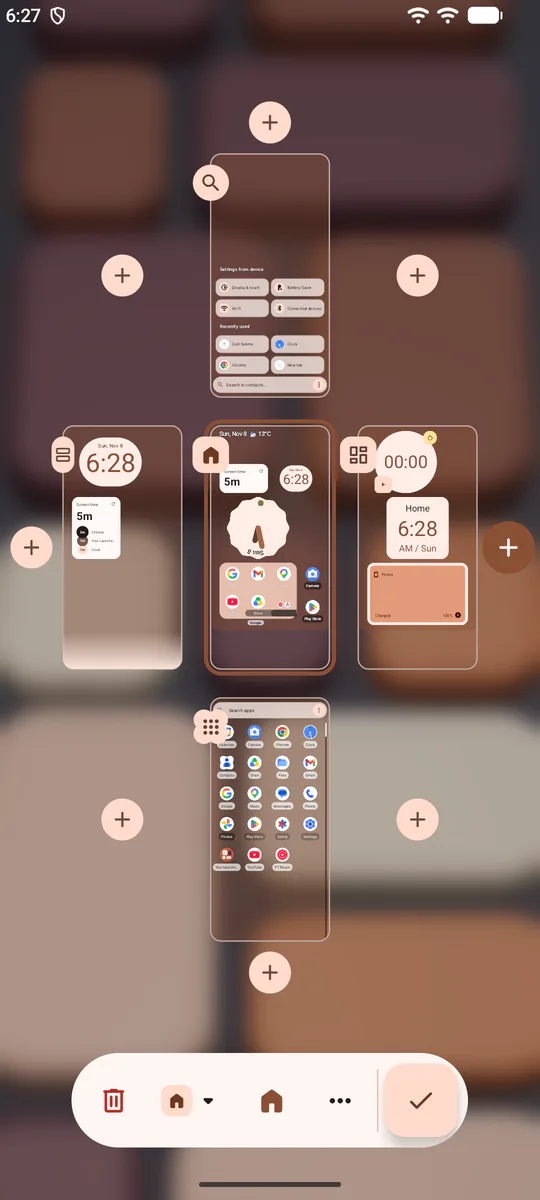
The page map: the home page in the middle with its neighbouring pages around it, its page type, dock switch and 4×6 grid.
- 02
Page types
Put Standard, Apps, Search and Flow pages anywhere on the map.
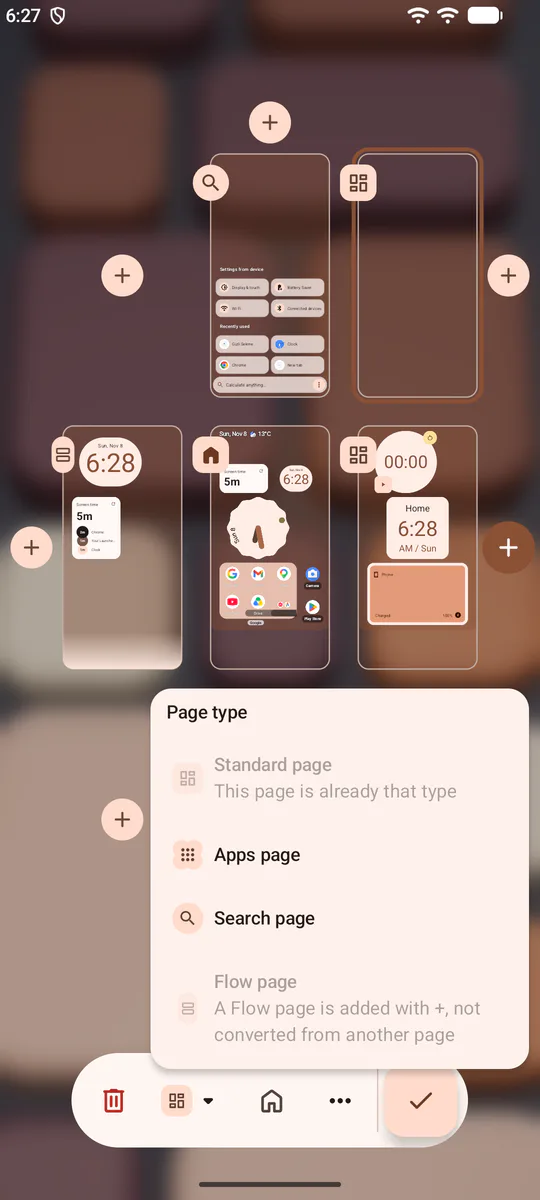
The page map with the home page in the middle, the Search page above it, the Apps page below it and neighbouring pages on both sides.
- 03
Flow
A page that keeps extending downward as you add to it.
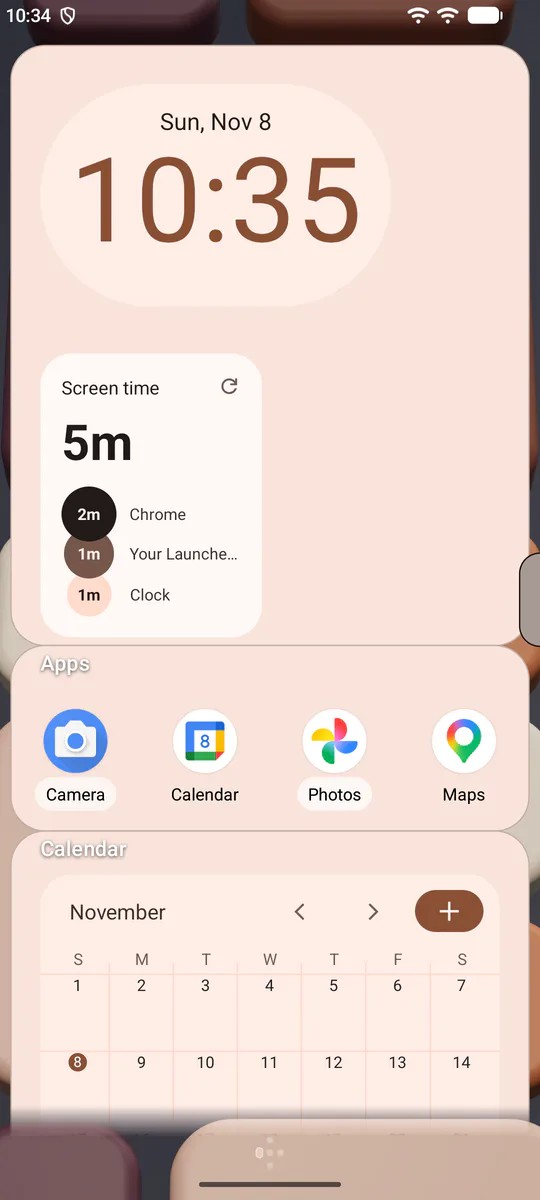
A Flow page: one card holding a clock, a screen time widget, four apps under an Apps header and, under a Calendar header, a month calendar that runs on below the screen.
- 04
Widget stacks
Stack widgets from different apps, switch between them and set the opacity of each.
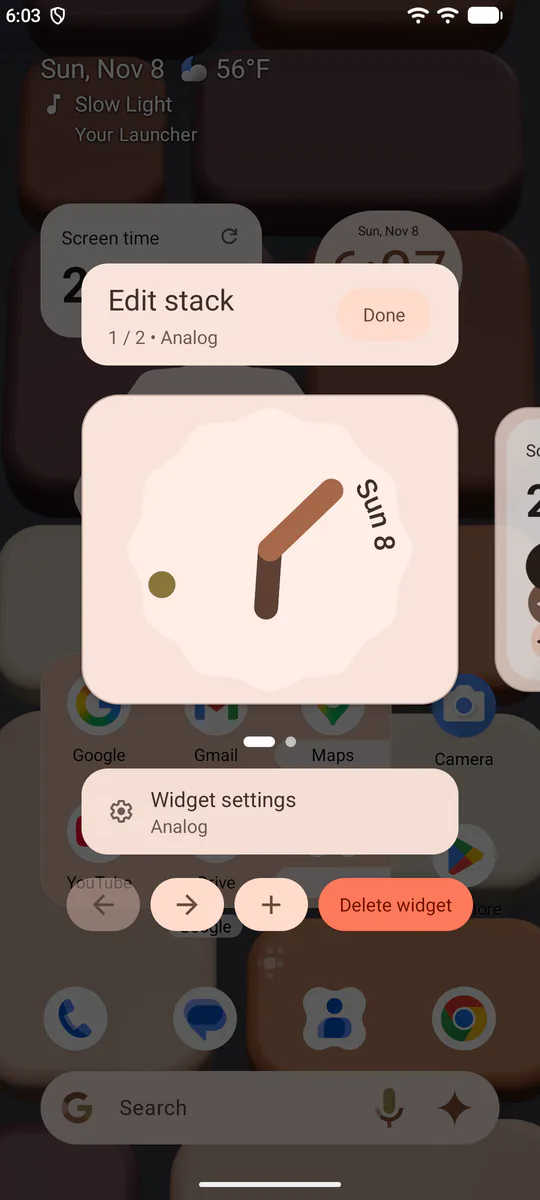
A stack of first-run tip cards on the home screen; the card says that swiping sideways shows the next tip and a long press edits the stack.
- 05
Enlarged folders
Resize a folder from its edge, just like a widget.
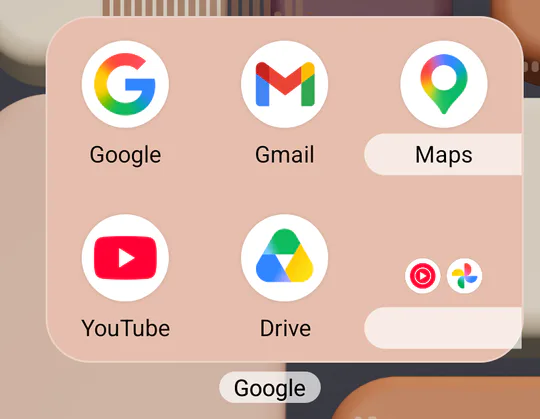
A close-up of the home screen: an enlarged Google folder showing Google, Gmail, YouTube and four small icons without being opened.
- 06
Two-zone dock
The dock has two zones you switch on separately, and you choose which pages show it. It holds apps, widgets and enlarged folders.
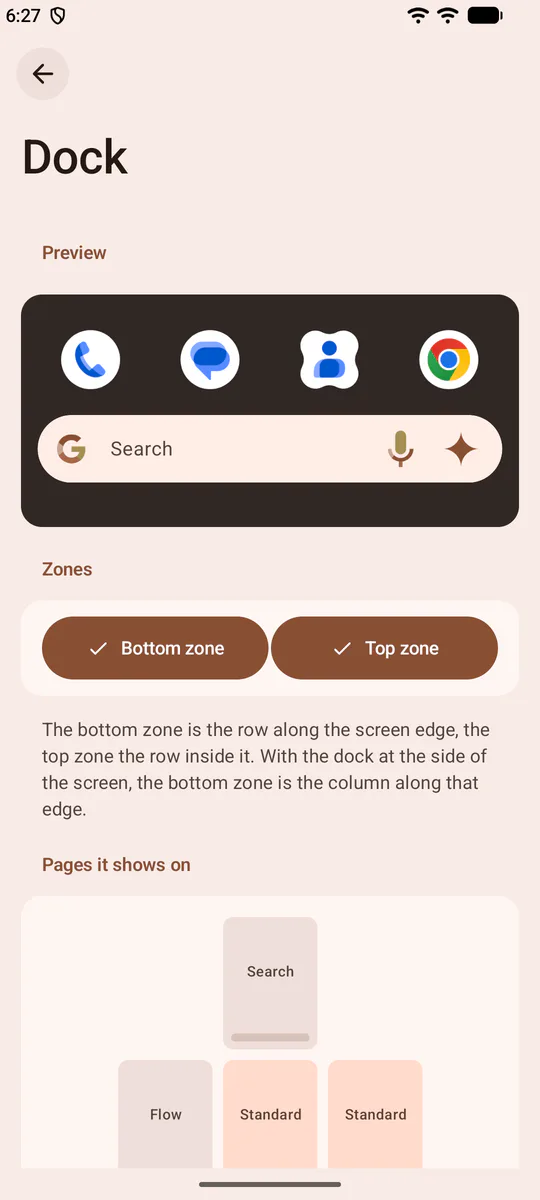
The dock settings: a preview with four app icons and the search bar, and below it the Bottom zone and Top zone switches and the pages the dock appears on.
- 07
Edge panel
Pull it in from the edge of the screen to reach apps, contacts and quick settings.
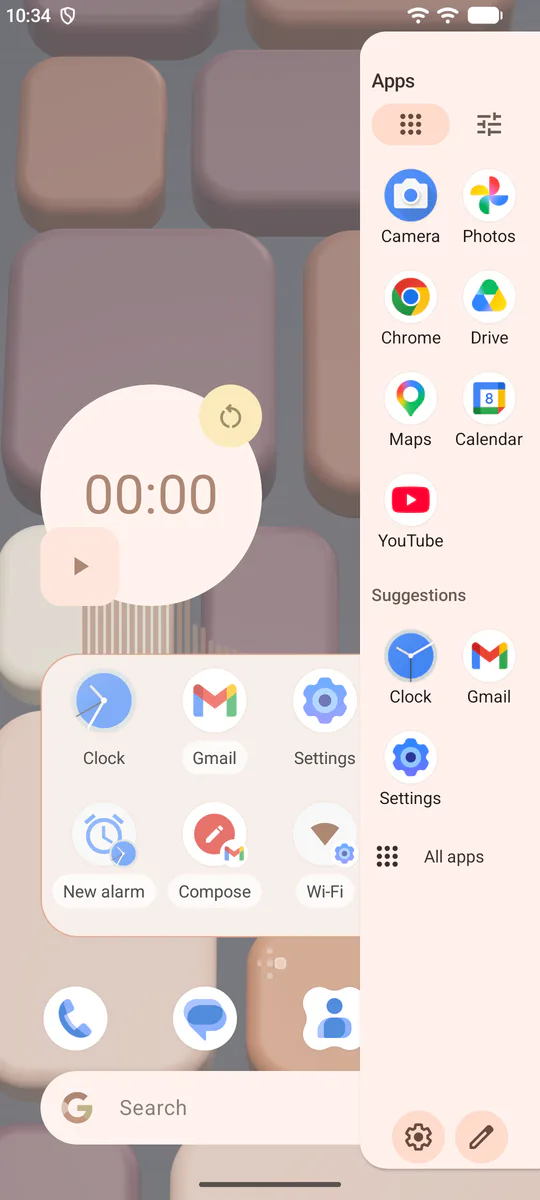
The edge panel pulled in from the right edge of the screen: tabs for apps and quick settings, pinned apps, suggestions and an All apps button.
- 08
Gestures
App and page gestures, the home and back buttons, endless scrolling between pages: all on one settings screen.
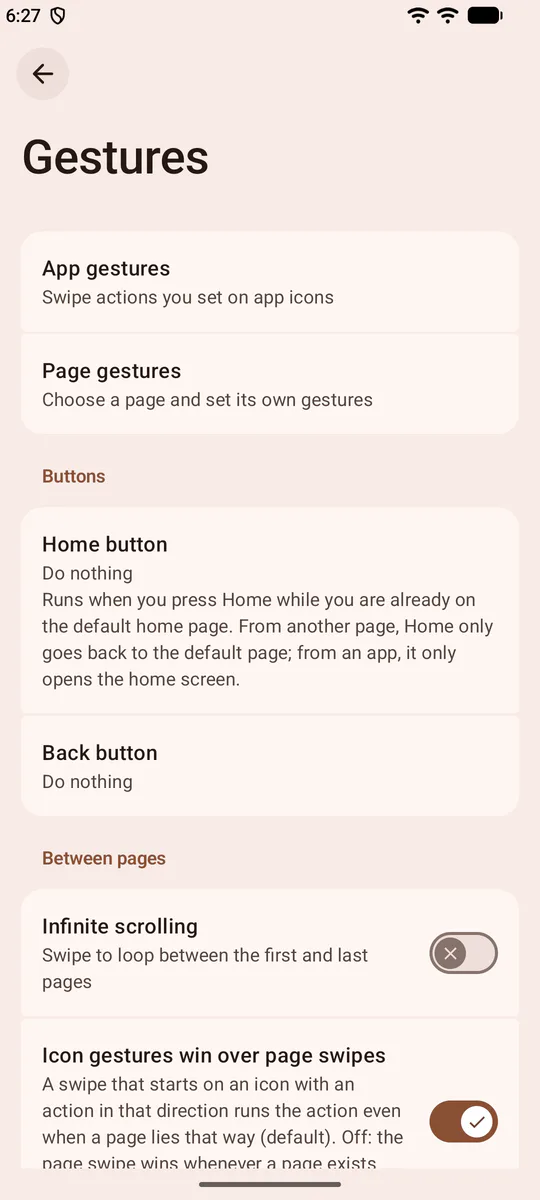
The Gestures settings: app gestures, page gestures, the home and back buttons and endless scrolling between pages.
- 09
Per-icon customisation
Change one app’s icon and name; set its shape, its gestures and whether it is hidden from the drawer in the same place.
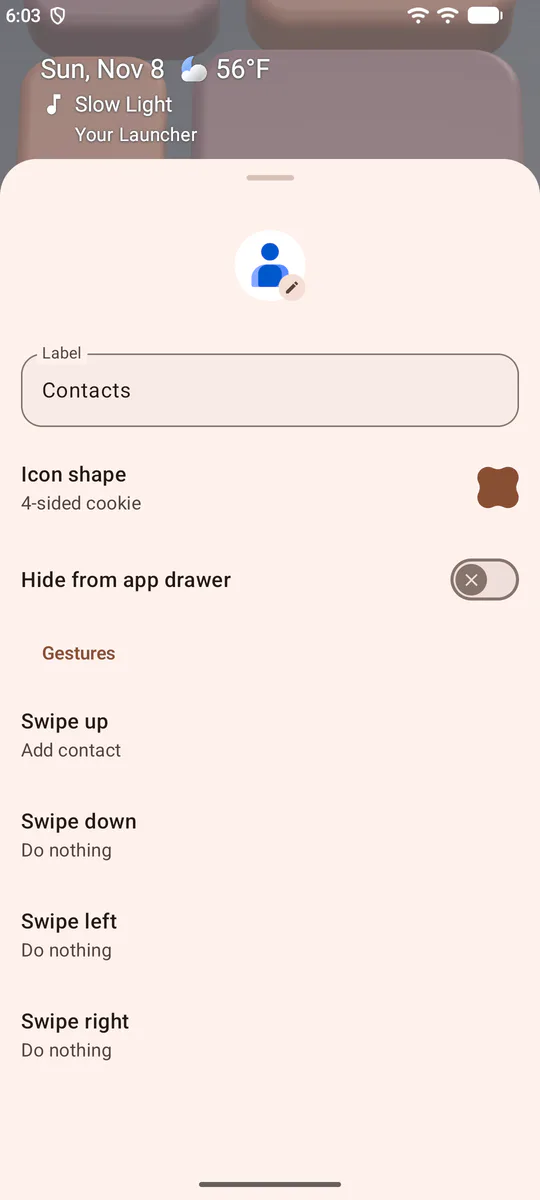
One app’s icon settings: its label, the icon shape, the switch that hides it from the app drawer and its swipe gestures.
- 10
Per-page gestures
Every page has its own gestures: double tap, swipe up and down, two-finger swipe, pinch in.
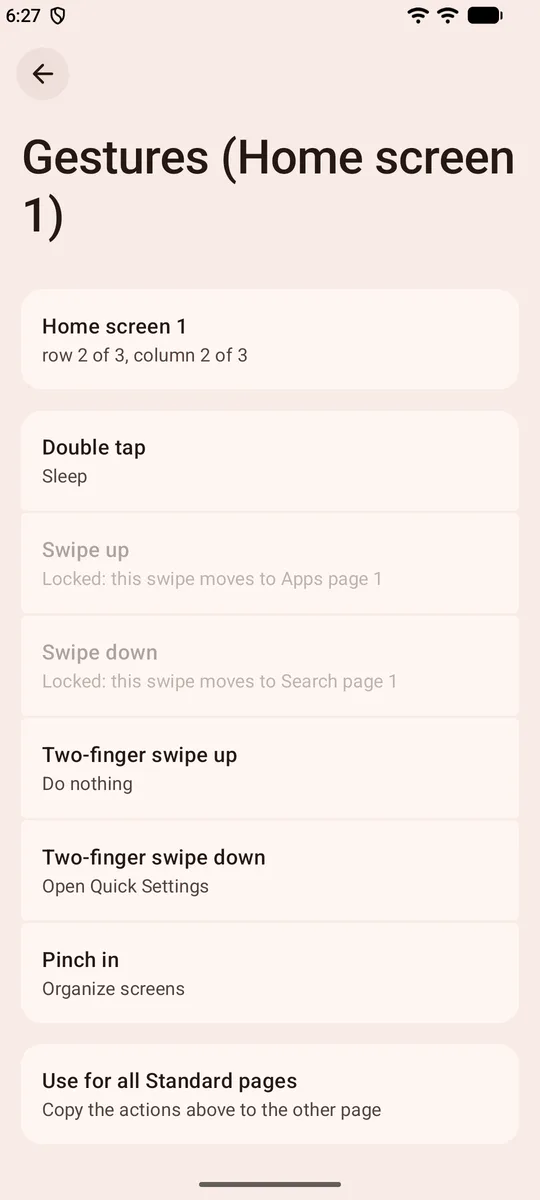
One page’s gestures: separate actions for double tap, swipe up and down, two-finger swipe up and down and two-finger pinch.
- 11
Per-icon gestures
Give any icon its own action for swiping up, down, left and right.
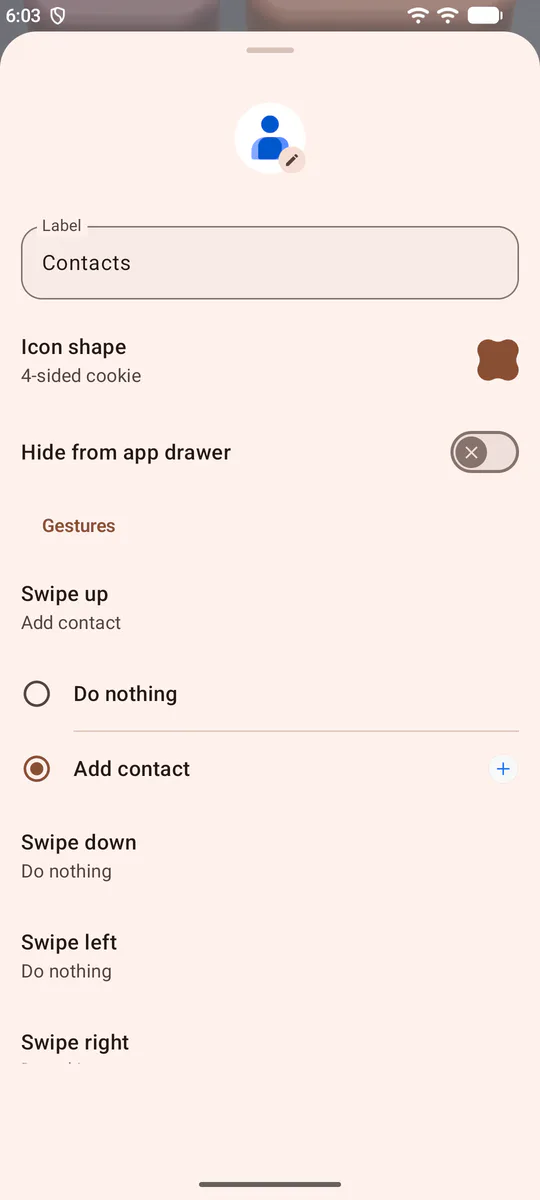
One icon’s swipe gestures: a separate action to choose for swiping up, down, left and right, with Add contact chosen for swiping up.
- 12
Smart suggestions
Suggested apps, shortcuts and widgets, in real widgets you place on your home screen.
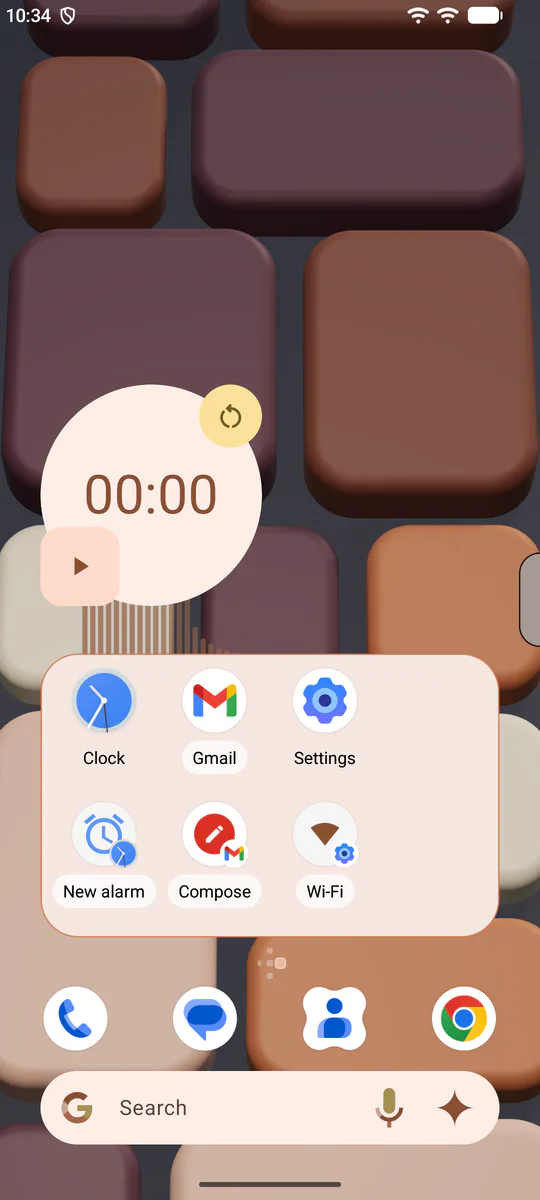
Two suggestion widgets on a home screen: a suggested live widget (a stopwatch) on top, suggested apps and app shortcuts below it.
- 14
Apps page
A standard grid, category folders or tabbed categories. You choose the sort order and where the search bar sits.
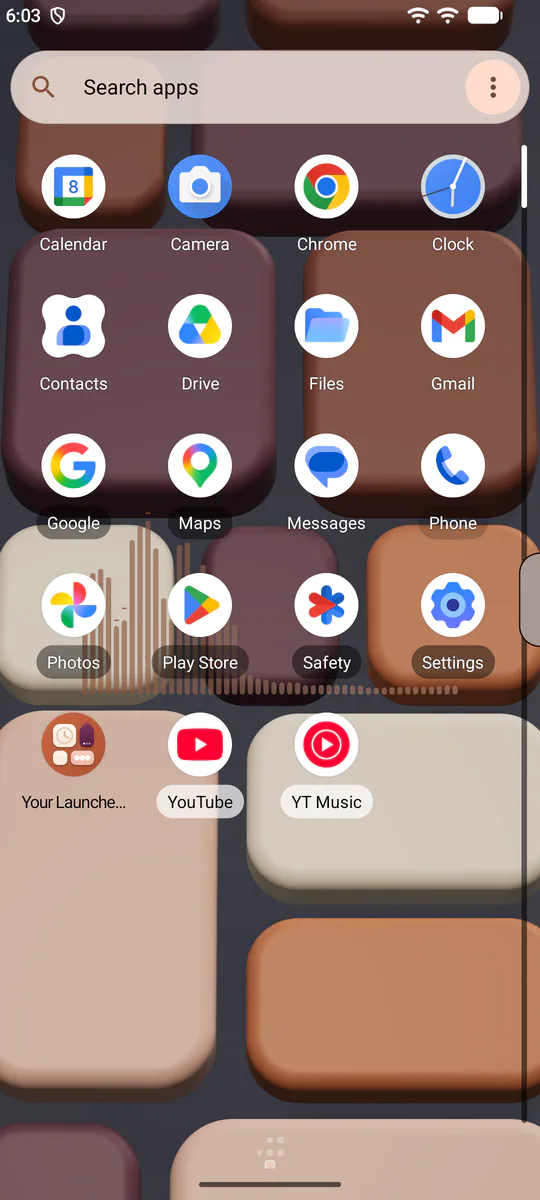
The Apps page: a search bar on top, an alphabetical app grid and a letter index along the right edge.
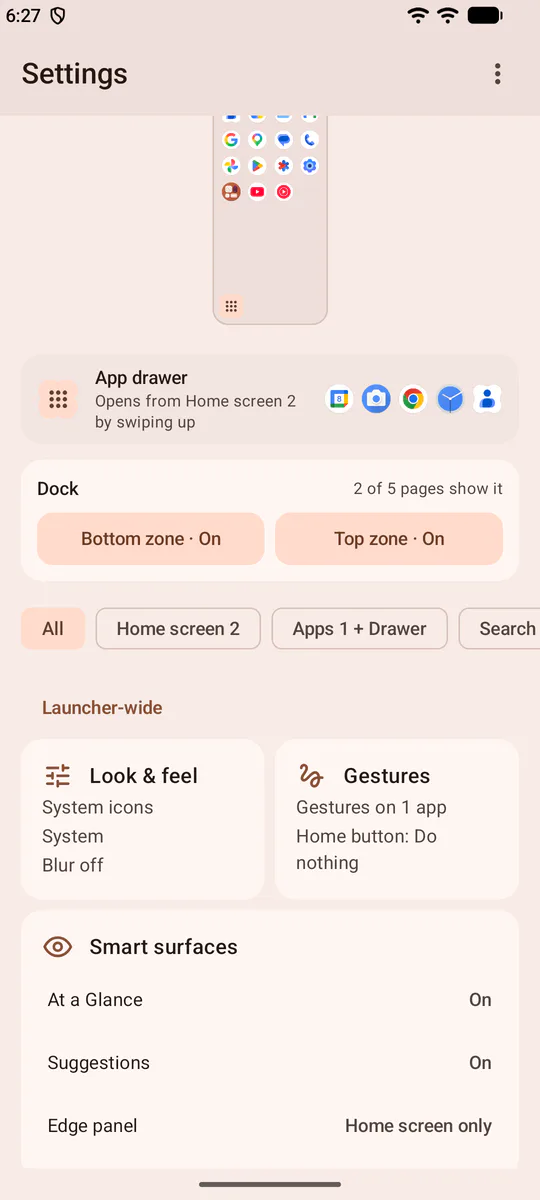
The Apps page options: presentation (standard grid, category folders, tabbed categories), scrolling layout, sort order and search bar position.
- 15
Search
Apps, contacts, the web, files and launcher settings in one search.
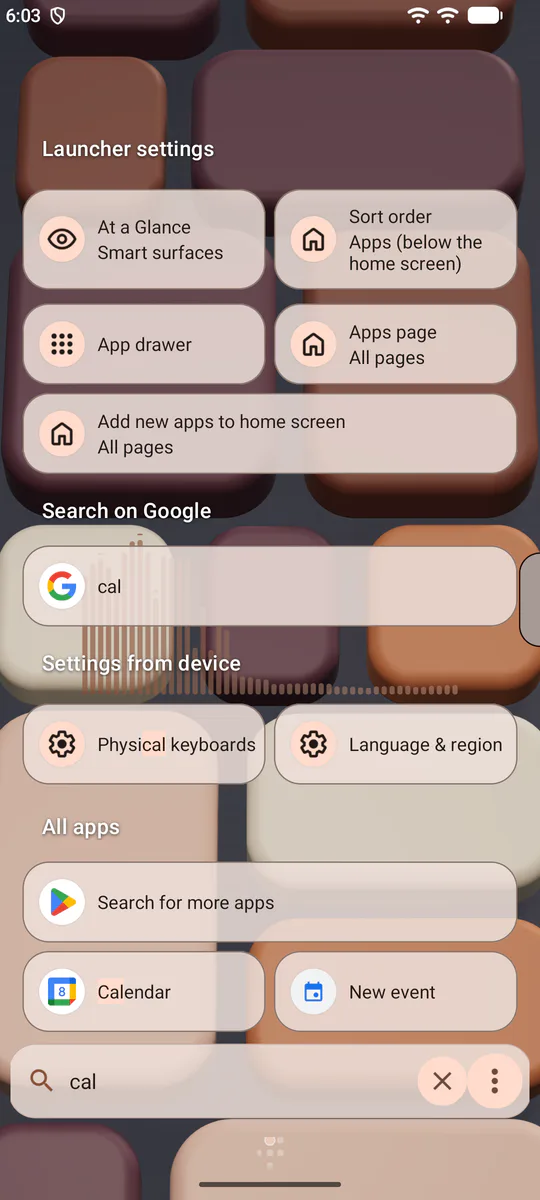
The Search page: settings, apps and app shortcuts for the typed query, together.
- 16
Backup
Back up your layout and preferences to a file and restore them when you need to.


All features
74 features
Home screen and pages
18- Page mapAdd pages in four directions; the home screen becomes a map that grows sideways and vertically, or stays a single row.
- Page typesPut Standard, Apps, Search and Flow pages anywhere on the map.
- Page gridPick each page’s rows and columns page by page, with a live preview.
- Edit on the mapDrag pages to move or swap them, add new ones in between, delete and undo; make any page the home page.
- Overview of all pagesA small overview shows where you are on the map; tap a page to go to it.
- Flow pageA page that extends downward, with widgets, apps and section headers one under another.
- Apps pageAn app list on the home screen: a standard grid, category folders or tabs; you choose the sort order and where the search bar sits.
- Search pageA page of its own for search: apps, contacts, settings, files and web suggestions together.
- App drawerGrid size, folders or tabs, with frequent and recent apps on top.
- Dock: two zonesThe dock’s bottom and top zones switch on and off separately; each holds apps, shortcuts, app pairs, folders and widgets.
- Dock appearanceSet the dock’s background, colour, opacity, margins and row height.
- Dock page by pageTap a page on the map to choose whether the dock shows on it.
- Side dock in landscapeIn landscape the dock moves to the side of the screen.
- Separate landscape layoutArrange the home screen separately in landscape: the same pages and items, each with its own grid and position.
- Icons and labels per pageIcon size, label size, whether labels show and the page padding are set for each page on its own.
- Infinite scrollingSwipe on from the last page to the first and back again.
- Lock home screenStops the home screen layout from being changed by accident.
- Multi-selectSelect several icons and move them together, put them in a folder or remove them.
Widgets and folders
9- Widget stackStack widgets from different apps and swipe between them.
- Resizing widgets and foldersResize widgets and large folders from their edges on the home screen and in the dock; optionally ignore the size range an app declares.
- Widget opacitySet the opacity of each widget on its own.
- Large folderEnlarge a folder and tap the apps inside it without opening it; shape, colour and opacity are adjustable.
- At a GlanceNext to the date and weather: the next calendar event, alarm, timer and stopwatch, connected headphones and battery status; a tap opens the matching app.
- Smart suggestionsA widget that suggests apps, shortcuts and widgets based on how you use the phone; you can block a suggestion you do not want.
- Frequent and recent appsTwo separate widgets showing the apps you use most and those you opened last.
- Search widgetsA search bar you can place anywhere on the home screen, and a small button that opens the search page.
- Audio visualizer (Cava)Draws the sound you play on the home screen, above the wallpaper and behind the icons: columns, wave, circular and symmetric.
Edge panel
11- Edge panelA panel you pull in from the screen edge; its side, the handle’s size and colour and the panel’s opacity are adjustable.
- Over all appsShow it on the home screen only or over every app; hide the handle in full-screen apps and in apps you choose.
- Apps, pairs and folders in the panelPin apps, shortcuts, app pairs and folders to the panel and choose the column count.
- Several panelsPanels are added, ordered and switched off page by page; there can be more than one of the same kind.
- Quick settingsQuick settings tiles you arrange yourself (flashlight, internet, screenshot, lock screen and more), volume and brightness sliders, media controls.
- ContactsAdd the people you reach most often to the panel.
- RulerAn on-screen ruler in centimetres and inches; it can be calibrated if the screen reports the wrong DPI.
- CompassShows magnetic north and suggests calibration when accuracy is low.
- Spirit levelShows horizontal and vertical tilt in degrees; the position can be zeroed.
- ClipboardShows the latest copied text; it reads the clipboard only while the panel is open and keeps no history. You can pin texts.
- App bubbleOpen an app in a floating bubble window instead of full screen (needs Android’s bubble permissions).
Search
5- What search coversApps, shortcuts, contacts, settings, files, calculations, web suggestions and search history; you choose which show, in what order and how many results.
- Web suggestion providersWeb suggestions are off by default; when you turn them on you pick Google, DuckDuckGo, Startpage, Kagi or a provider of your own.
- Fuzzy searchApproximate matching that tolerates typos and missing letters.
- Semantic search (beta)Finds apps, shortcuts and settings by what they do (for example “take a photo”). Beta and off by default; an on-device model is downloaded once.
- Search barsSeparate settings for the drawer search bar, the standalone search and the Search page: position, size, keyboard and provider icons.
Look and personalisation
12- Per-icon customisationChange one app’s icon and name; set that app’s icon shape, gestures and whether it is hidden from the drawer in the same place.
- Icon packChoose one of your installed icon packs; you can also swap a single app’s icon from a pack.
- Icon shapePick one shape for all icons; give a single app a shape of its own if you like.
- Themed iconsUse monochrome themed icons on the home screen and, if you want, in the drawer.
- Colours that follow the system themeLight, dark or system theme; an accent colour taken from the wallpaper and a choice of colour styles.
- Icon and label sizeLeave sizes automatic or set them by hand by dragging in the preview.
- Notification dotsA dot or counter on apps with notifications; its colours are adjustable.
- Category folders (Beta)Apps are sorted into categories automatically (Beta); you can change an app’s category yourself.
- Wallpaper blurBlur the wallpaper; its strength and quality are adjustable.
- Wallpaper scrolling and depthThe wallpaper scrolls with the pages; a depth effect that zooms in and out on transitions can be switched on.
- Show status barShow or hide the status bar on the home screen.
Gestures
5- Per-page gesturesEvery page has its own gestures: double tap, swipe up and down, two-finger swipe, pinch in. They can be applied to all pages of a type in one go.
- Per-icon gesturesGive any icon its own action for swiping up, down, left and right; optionally an icon gesture takes precedence over a page swipe.
- Gesture actionsGo home, sleep, recents, the notification panel, quick settings, the drawer, search, open an app, the assistant and page navigation, among others.
- Home and Back buttonsBind any action to the Home button and the Back button.
- Sleep modeTurn the screen off with a gesture; the method can be automatic, the accessibility service, device admin or root.
Large screens
4- Desktop mode on tablets and PCsOn a large screen with a keyboard and a mouse or touchpad: page edge arrows, the mouse wheel and two-finger touchpad scrolling.
- Resizable and freeform windowsOn Chromebooks, desktop Android PCs and other freeform-window devices the home screen works in a resizable window beside your apps.
- Hide in desktop modeHide the dock while you work at a desk; it comes back when the keyboard and mouse are unplugged.
- Foldable and tablet layoutsSeparate grid and layout definitions for foldable and large screens; app pairs are used while the device is unfolded.
Accessibility and languages
4- LanguagesThe interface comes in 76 languages. You can also pick the language in Android’s per-app language settings.
- Right-to-left languagesMirrored layout for Arabic, Persian, Hebrew and Urdu.
- Large text sizesSettings screens follow the system text size; words are not broken in the middle and, if needed, the text shrinks a little.
- Accessibility serviceOptional; it only performs what you start from a gesture or the edge panel (lock the screen, screenshot, split screen…); it does not read the screen.
Backup and moving over
3- Backup and migrationSave your layout, widgets and settings to a .YourBackup file, with the wallpaper if you like; a report is shown when you restore.
- Android backupAndroid cloud backup and device-to-device transfer bring your layout to a new phone.
- Import from another launcherBring your home screen over from a Nova, Lawnchair, Neo Launcher or Kvaesitso backup.
Privacy and price
3- Your data stays on the deviceNo account; the app list, contacts, usage statistics and clipboard stay on the device. Only features you turn on go online: web suggestions, the semantic search model.
- Every feature is freeNo feature is locked; Pro only removes the ad banner.
- Ad banner and one-time ProThere is a small ad banner in Settings; a one-time Pro purchase removes it and supports the developer.